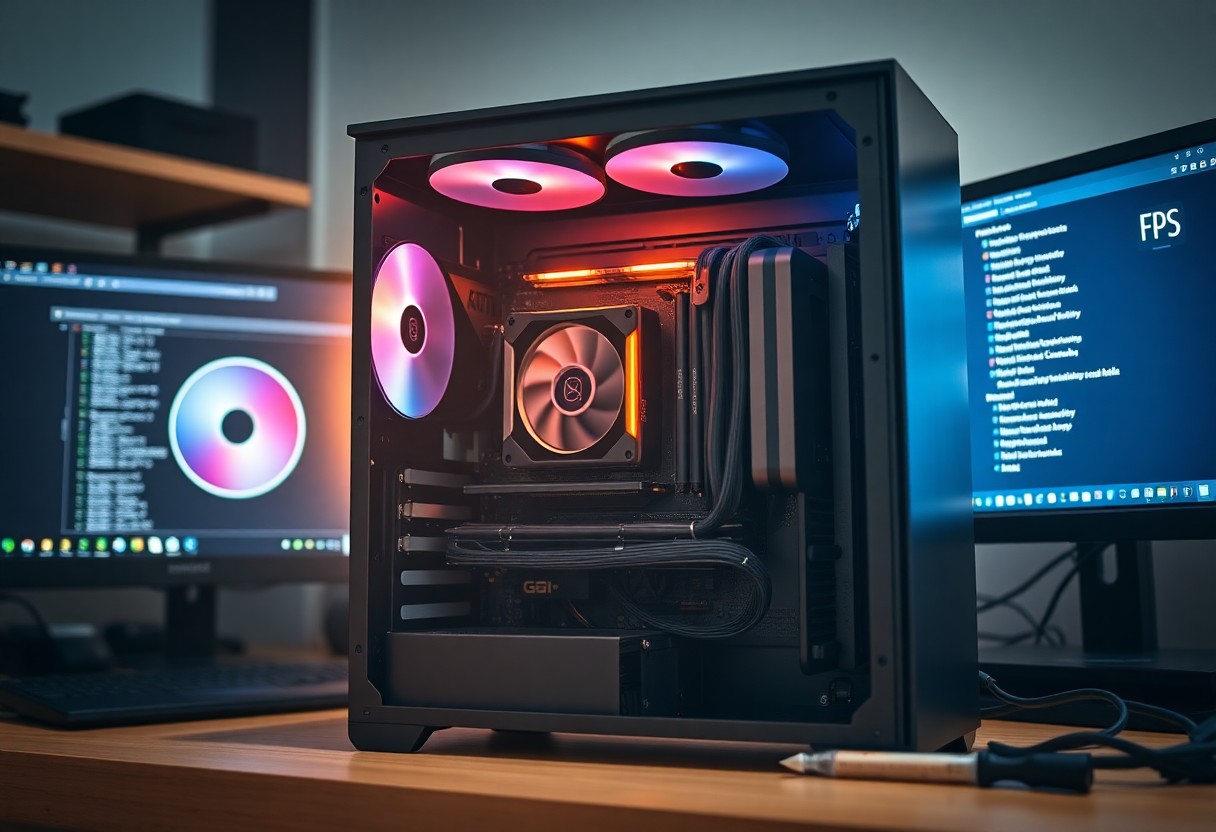
Optimization focuses on steps you take to boost FPS: update GPU drivers, clean background apps, and install an SSD for faster load times; monitor temps to avoid overheating that can damage hardware and lower performance.
Primary Factors Influencing Gaming Stability
GPU and CPU utilization, RAM capacity, and storage throughput directly shape gaming stability, producing either steady frame delivery or stutter under load.
- CPU load and core utilization
- GPU clocks and VRAM pressure
- RAM speed and capacity
- Storage I/O and FPS consistency
- Power delivery and component temperatures
Latency from network or slow drives can trigger microstutters and frame drops. Assume that you prioritize cooling and driver updates to keep stability high.
Identifying Hardware Bottlenecks
Use benchmarking and monitoring tools to compare utilization; if your GPU hits 99% while the CPU stays idle, the GPU is likely the bottleneck, lowering your FPS ceiling.
Understanding Thermal Throttling Impacts
Hot components force reduced clock speeds via thermal throttling, so you may observe sudden FPS drops and increased input lag during long sessions.
Monitor your CPU and GPU temperatures and fan behavior; applying conservative undervolt or adjusted fan curves keeps frequencies steadier and prevents unsafe spikes.
Cleaning dust, reapplying thermal paste, or improving case airflow can eliminate dangerous throttling and restore sustained performance.
High-Performance Hardware Upgrade Types
Upgrades like a new GPU, faster NVMe SSD, extra RAM, a stronger CPU, and improved cooling directly raise your gaming performance. Perceiving the cost-to-performance trade-offs helps you prioritize which components to buy.
- GPU
- CPU
- NVMe SSD
- RAM
- Cooling
| GPU | Higher FPS, better visuals |
| CPU | Improved min FPS, physics |
| NVMe SSD | Faster load times, reduced stutter |
| RAM | Smoother multitasking, less swapping |
| Cooling | Sustained performance, prevents thermal throttling |
Selecting Advanced Graphics Processing Units
Choose a GPU that matches your target resolution and frame rate, prioritize VRAM and thermal headroom, and check benchmarks for the titles you play to avoid bottlenecks.
- Match GPU to target resolution (1080p, 1440p, 4K)
- Verify VRAM and architecture for texture-heavy games
- Confirm PSU and cooling capacity to prevent overheating
GPU Comparison
| Entry-level | Good for 1080p, budget-friendly |
| Mid-range | Stable 1440p performance |
| High-end | 4K/RT and high FPS |
Benefits of NVMe SSDs and RAM Expansion
NVMe drives slash load and install times and reduce texture streaming issues, while adding RAM prevents swapping and maintains steady frame delivery, improving overall responsiveness for you.
Expanding RAM to 16-32GB supports background tasks and mods, and pairing NVMe with a heatsink protects components from thermal throttling to keep performance consistent.
Essential Software Optimization Tips
Optimize your system settings: enable Game Mode, choose a high-performance power plan, and adjust graphics priorities to favor gaming performance.
- Enable game mode
- Set power plan to high performance
- Keep drivers updated
- Manage background processes
Prioritize regular maintenance like clearing temp files and updating utilities you rely on. This reduces frame drops and prevents conflicts that harm gaming performance.
Managing Driver Updates and Firmware
Update your GPU and chipset drivers from official manufacturer sources and apply stable firmware updates for BIOS/UEFI so you avoid regressions that cause stuttering or crashes while you play.
Streamlining Background Processes and Services
Close apps you don’t need and use Task Manager to end heavy background processes; if you disable services, stop only nonvital ones and never remove critical system services like Windows Update or security services.
Disable overlays, auto-updaters, and scheduled scans before starting games to reduce interruptions and free CPU cycles so you get smoother gaming performance.
Step-by-Step Guide to System Configuration
System Configuration Steps
| Step | Action |
|---|---|
| Update drivers | Install latest GPU and chipset drivers |
| Power plan | Set to High performance or create a custom plan |
| Startup apps | Disable unnecessary services and background apps |
| GPU control | Configure per-game profiles and global performance settings |
| In-game presets | Adjust shadows, AA, and post-processing first |
Adjusting Windows Power Management Plans
Windows power plans can throttle CPU and GPU; you should switch to High performance or build a custom plan to prevent aggressive clock downscaling while gaming. Expect higher power draw and temperatures, so you must monitor thermals and fan curves to avoid overheating.
Fine-Tuning In-Game Graphics Presets
Adjust graphics presets by prioritizing options that impact performance most: reduce shadows, anti-aliasing and post-processing while preserving resolution and textures when possible to raise frame rate and cut noticeable stutters.
Test changes with the game’s FPS counter or a short benchmark run; you should compare average FPS and frametimes, then save per-title profiles in your GPU control panel so settings apply consistently.
Lower shadow detail, volumetrics and motion blur first because they cost a lot for little visual return; you should keep Texture quality high if VRAM permits, and toggle VSync based on whether you prefer reduced tearing or lower input lag.
Pros and Cons of Manual Overclocking
Manual overclocking can push hardware beyond stock speeds to yield noticeable FPS and responsiveness gains, but it demands careful tuning and monitoring to avoid damage. Use conservative steps and stability testing to balance performance with longevity.
| Pros | Cons |
|---|---|
| Higher CPU/GPU clock speeds | Increased power draw |
| Better frame rates in CPU-bound games | More heat output; need for better cooling |
| Potential cost-free performance boost | Risk of hardware instability |
| Control over voltages and timings | Possible warranty void on some components |
| Fine-tuning for specific workloads | Time-consuming testing and validation |
| Can extend usable life of older parts | Chance of permanent damage if misconfigured |
Maximizing Frame Rates and Responsiveness
You should focus on stable frequency steps, incremental voltage increases, and targeted benchmarks to confirm improvements without introducing stutters. Combine overclocking with driver updates and game settings to get the best practical gains.
Adjusting memory timings and GPU boost behavior can shave latency and improve minimum FPS, which matters more than peak numbers for smooth play. Keep a baseline profile so you can revert if you see frame drops or crashes.
Risks of System Instability and Heat Generation
Overclocking raises operating temperatures and can trigger thermal throttling or spontaneous reboots if cooling is inadequate, so you must monitor temps under load. Use stress tests and thermal logs to validate stability.
Excessive voltages accelerate wear on silicon and capacitors, increasing the chance of long-term failure; if you value hardware longevity, err on the side of lower voltages and thorough testing.
Monitor fan curves, case airflow, and component temps continuously when you run sustained loads; implementing adequate cooling and conservative failsafes prevents most heat-related failures and preserves performance gains.
Routine Maintenance for Peak Efficiency
Keeping a regular maintenance routine ensures small issues don’t become performance killers; you should update drivers, clear temp files, and check startup programs monthly. Create restore points before major changes and keep backups so you can revert if a tweak destabilizes the system; backing up restores and drivers guards you against missteps.
Simple monitoring with tools like HWMonitor or MSI Afterburner lets you spot thermal spikes and CPU/GPU throttling. Track baseline performance and compare after adjustments to confirm gains, often yielding smoother framerates and lower temperatures.
Physical Cleaning and Airflow Optimization
Dust buildup inside the case restricts airflow and can cause overheating and component damage, so power down, unplug, and clean fans, heatsinks, and filters with compressed air. Use short bursts and a soft brush to avoid spinning fans too fast; compressed air is typically safest for routine cleaning.
Organize cables and verify fan orientation for clear intake and exhaust paths to improve cooling efficiency. You should also consider reapplying thermal paste every few years on high-use CPUs/GPU coolers to achieve noticeable temperature drops and steadier clock speeds.
Registry Cleanup and Disk Defragmentation
Windows registry cleaners can remove orphaned keys and speed startups, but editing the registry carries risk; always export the registry and create a restore point before changes so you can recover if errors occur. Use reputable tools and review proposed deletions.
Defragmentation helps HDD access times but is harmful to SSDs; do not defragment solid-state drives. Use the OS’s optimization tool to run TRIM on SSDs and schedule defrag for mechanical drives to maintain consistent load times.
If you pick a registry cleaner, choose a trusted program, scan conservatively, and inspect changes before applying because automated removals can delete needed entries. For disks, run Disk Cleanup, then use ‘Optimize Drives’ for SSDs or scheduled defrag for HDDs, and always keep a current system backup.
To wrap up
Considering all points, you can optimize your PC for better gaming performance by updating drivers, tweaking in-game settings, moving games to an SSD, adding RAM or a stronger GPU when necessary, and minimizing background processes. You should monitor temperatures, maintain good cooling and tidy system maintenance to sustain stable frame rates and reduce stutters.