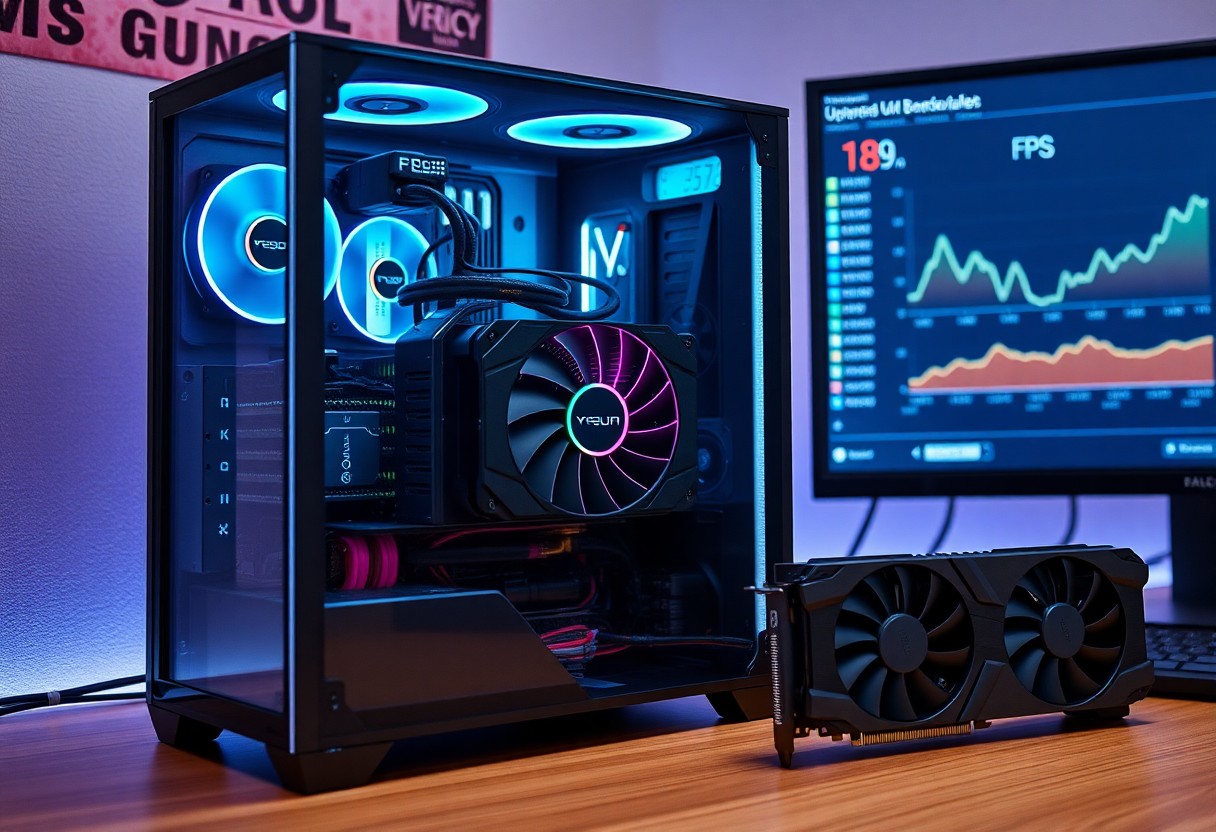

Many gamers find that your graphics card dictates playable settings and performance; you must balance frame rates, resolution, and power to avoid stuttering or overheating, while higher-end GPUs unlock ray tracing and smoother gameplay.
Key Factors Influencing Gaming Performance
Graphics cards determine how you experience games by driving frame rates, rendering detail, and affecting input latency. You will notice that architecture, VRAM, clock speed, and drivers all interact to change visual fidelity and smoothness. Insufficient VRAM or thermal throttling can cause stutters or sudden drops in performance.
- Architecture
- Cores and Clocks
- VRAM Capacity
- Memory Bandwidth
- Drivers & Thermals
Architecture and Core Processing Power
GPU microarchitecture and core counts shape how you handle complex shaders and compute workloads; newer designs often squeeze better performance per watt. You should monitor clock speeds and sustained throughput because thermal throttling can reduce performance during long sessions. Higher core counts and faster clocks generally increase frame rates at higher settings.
VRAM Capacity and Memory Bandwidth
Memory capacity and bus width control how many high-resolution textures and framebuffers you can keep on-card without swapping to system RAM. You will observe texture pop-in and stuttering when VRAM is exhausted, and faster memory standards boost throughput for demanding resolutions. Greater VRAM and bandwidth enable higher resolutions and richer texture packs.
Latency from narrow buses or older memory types can bottleneck shaders and ray tracing; you should prefer cards with higher bandwidth for stable performance across resolutions. Real-world guidance: 4GB often limits modern titles, 8-12GB suits 1080p-1440p, while 16GB+ helps 4K and heavy mods. The best choice matches VRAM and bandwidth to your target resolution and settings.
Understanding Different Types of Graphics Cards
- Graphics cards
- Integrated
- Dedicated
- Entry-level
- Flagship
| Integrated | Shared memory, low power draw, suited for casual gaming |
| Dedicated | Onboard VRAM, higher raw GPU performance |
| Entry-level | Budget graphics cards, 1080p at low-to-medium settings |
| Mid-range | Balanced price/performance for 1080p high and 1440p |
| Flagship | Top-tier performance for 4K and high-refresh gaming |
Integrated vs. Dedicated Hardware Solutions
Integrated GPUs sit on the CPU die and share system RAM, so you will see lower costs and power use but limited frame rates; thermal impact is minimal and bottlenecks appear in modern titles.
Dedicated cards include their own VRAM and cooling, so you can expect much higher frame rates and smoother settings, though you must watch for power draw and thermal throttling that can reduce sustained performance.
Entry-Level, Mid-Range, and Flagship Categories
Entry-level cards let you play at 1080p with modest settings, while mid-range options push higher frame rates at 1080p and decent 1440p results; you should weigh performance per dollar when choosing.
Flagship GPUs deliver the best visuals and framerates for 4K or competitive high-refresh play, but you will face much higher prices, power needs, and cooling requirements that influence your overall build.
Performance scaling between entry-level, mid-range, and flagship is not linear, so you should study benchmarks, memory size, and PSU requirements before upgrading. Thou compare real-world tests and your target resolution to pick the right card.
Pros and Cons of High-End GPU Investment
| Pros | Cons |
|---|---|
| Higher FPS for smoother gameplay | High cost and large upfront expense |
| Improved visuals with ray tracing and higher resolutions | Increased power draw requiring stronger PSUs |
| Better competitive timing via lower input latency | Greater heat output that may need better cooling |
| AI upscaling (DLSS/FidelityFX) boosts performance | Larger card size can cause compatibility issues |
| VR and future titles ready | Driver quirks and occasional stability issues |
| Longer usable life before upgrades | Diminishing returns for extreme fidelity at high cost |
| Better streaming and recording performance | Higher noise under load from fans |
| Improved resale value for premium models | Potential need for motherboard or case upgrades |
Investing in a top-tier GPU gives you noticeable frame-rate and visual improvements that directly affect how games feel, but you must weigh that against the significant purchase price and possible system upgrades you’ll face.
Enhanced Visual Fidelity and Competitive Advantages
Visuals become more detailed when you upgrade, letting you enable ray tracing, higher resolutions, and stable high FPS so you can experience games as intended.
Competitive play benefits from reduced input latency and steadier frame pacing, so you can react faster and maintain an edge in fast-paced matches.
Increased Power Consumption and Thermal Output
Power demands rise with high-end cards, forcing you to consider a higher-capacity PSU and the ongoing cost of increased electricity use.
Thermals climb under sustained load, which can lead to louder fans and the risk of thermal throttling if your case airflow is inadequate.
Mitigation options you can apply include choosing a PSU with margin, improving case ventilation, using custom fan curves or undervolting, and monitoring temps so you avoid sustained overheating that shortens component life.
Step-by-Step Guide to Evaluating GPU Compatibility
|
Assessing System Bottlenecks and CPU Synergy
Check your CPU and GPU usage with overlays or benchmarks so you can spot if a CPU bottleneck is holding back frame rates and then match GPU class to your processor to avoid wasted performance. |
Verifying Power Supply and Chassis Dimensions
Measure case clearance and PSU connections before buying so you don’t end up with an incompatible card; many GPUs require multiple 8-pin connectors and higher wattage, and insufficient supply can cause instability or damage. |
Assessing System Bottlenecks and CPU Synergy
Compare in-game CPU and GPU utilization with overlay tools so you can determine whether lower frame rates stem from single-thread limits or a genuinely underpowered GPU.
Aim to pair your GPU with the target resolution and refresh rate you play at so you don’t overspend on a card your CPU cannot fully utilize.
Verifying Power Supply and Chassis Dimensions
Confirm PSU capacity and available PCIe connectors against the GPU manufacturer’s recommendations so you leave a safety margin and avoid crashes or component stress.
Allow enough physical clearance for card length, slot height, and cooling shrouds so you ensure fans aren’t obstructed and airflow remains effective.
Plan cable routes and verify that your case supports the card’s cooling profile so you avoid inadequate cooling or an undersized PSU that can cause thermal throttling or sudden shutdowns.

Essential Tips for Optimizing Frame Rates
Optimize your graphics card settings to favor steady frame rates, lowering shadows or post-processing before reducing resolution to keep visual clarity.
- Keep driver updates current
- Enable upscaling (DLSS/FSR) when available
- Improve case airflow to avoid thermal throttling
Adjust in-game presets and display sync to reduce stutter and latency while you monitor FPS with overlays for quick tuning.
Utilizing Driver Updates and Upscaling Technologies
Keep your driver updates automatic or check monthly; updated drivers often fix performance drops while upscaling like DLSS or FSR can raise FPS with minimal quality loss, and outdated drivers can cause crashes.
Managing Thermal Throttling through Airflow Control
Route intake and exhaust fans for clear front-to-back airflow, remove dust filters regularly, and ensure the GPU has unobstructed ventilation to prevent thermal throttling.
Thou should monitor temperatures and prioritize case ventilation, since sustained high GPU temps trigger throttling that sharply reduces performance.
Summing up
Drawing together, you can see how GPU choice, VRAM, core clock and architecture determine frame rates, resolution headroom, and graphical fidelity. You should match card performance to your monitor, target settings, and preferred refresh rate to achieve smooth play and future-proof your setup.