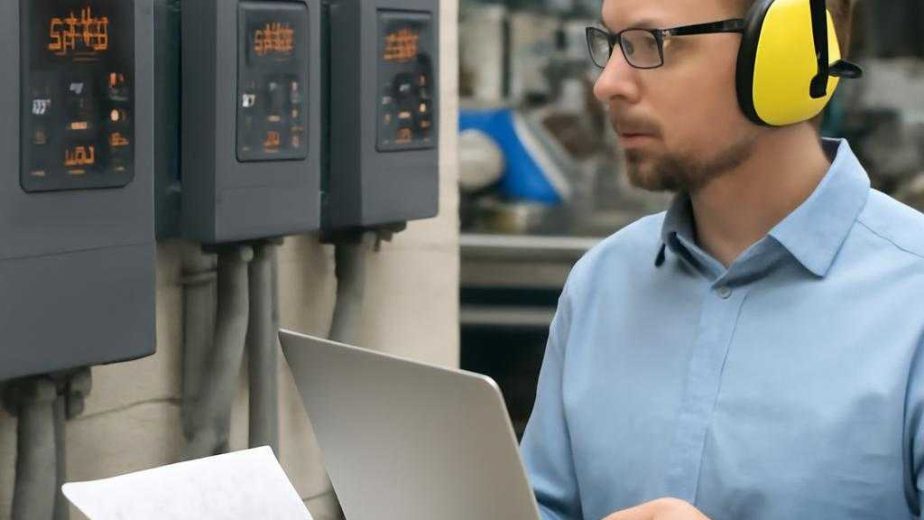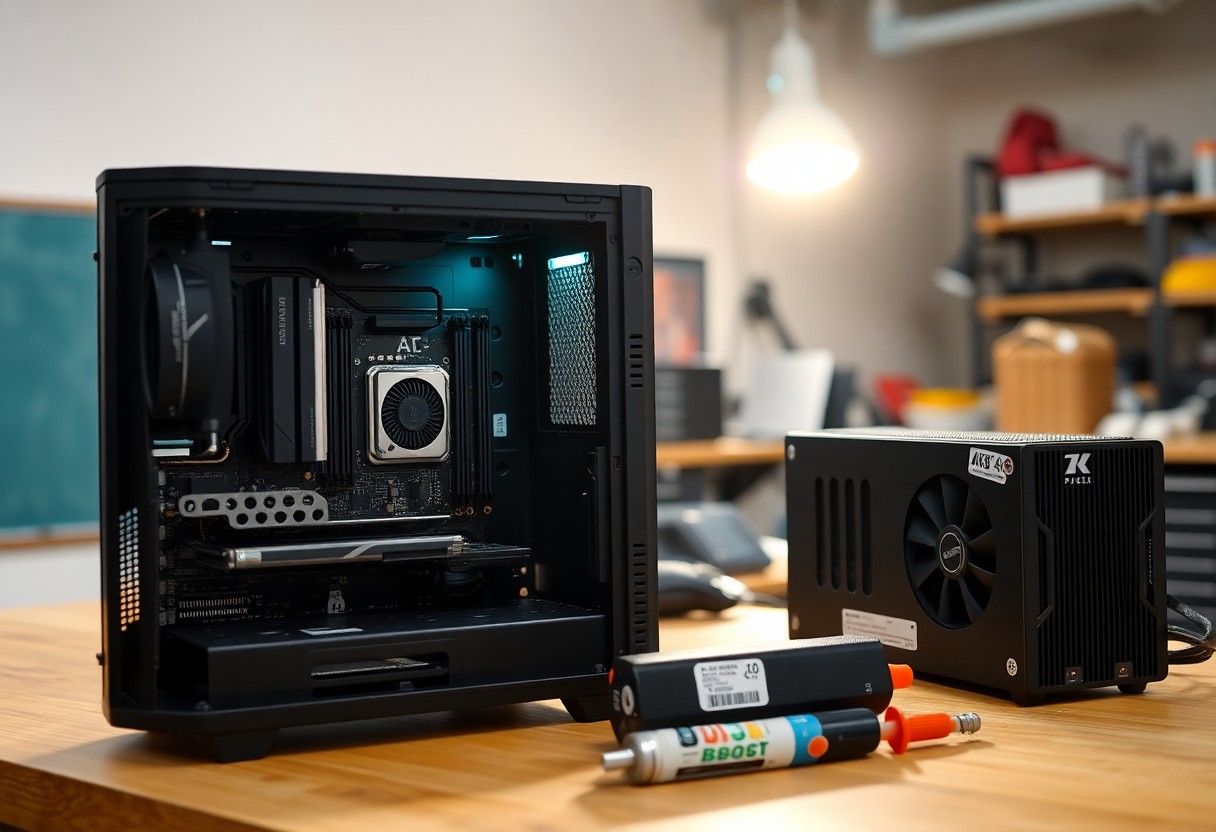

Most builders underestimate planning: you must verify part compatibility, prevent electrostatic discharge when handling components, and follow safe mounting to achieve maximum performance.
Understanding PC Types and Performance Tiers
Different PC types map to use cases: you can prioritize raw frame rates, content creation, or battery-friendly compact builds, and each demands different components. Balance matters: pick a CPU and GPU pairing that fits your goals, then match RAM, Storage, and cooling. The table below breaks down common tiers to help you decide.
- CPU
- GPU
- RAM
- Storage
- PSU
| Enthusiast | Top-tier CPU + flagship GPU, 32GB+ RAM, NVMe storage |
| High-End | High-core CPU, high-performance GPU, 16-32GB RAM |
| Mid-Range | Balanced CPU/GPU for 1080-1440p, 16GB RAM, SSD |
| Entry-Level | Affordable CPU, modest GPU or iGPU, 8-16GB RAM |
| Budget | Used GPU or integrated graphics, focus on upgrades and cost |
High-End Enthusiast Configurations
Selecting a high-end setup means you will choose a top-tier GPU, multi-core CPU, and advanced cooling; you must provision a high-wattage PSU to prevent instability. Expect higher heat and power draw, so you should plan case airflow and monitor thermals to avoid thermal throttling or hardware stress.
Budget-Friendly Entry-Level Builds
Choosing an entry-level build lets you target 1080p play using a modern value CPU and either an affordable GPU or integrated graphics; you should maximize single-thread performance and prioritize an SSD for responsiveness. Watch for weak power supplies and poor cooling, which can cause damage or poor longevity.
You can extend lifespan by selecting a motherboard with upgradeable sockets, adding RAM later, and avoiding cheap PSU units; this approach keeps initial costs low while preserving clear upgrade paths and reducing the risk of component failure.
Critical Factors for Component Selection
Balance your build around CPU, GPU, and motherboard choices while matching RAM speed and size to your needs. Check socket and chipset to avoid incompatible parts.
- Confirm PSU wattage and connectors
- Match case size to GPU length and cooler height
- Plan for future upgrades
Perceiving heat and power limits early prevents wasted purchases and unsafe setups.
Hardware Compatibility and Power Requirements
Verify that your motherboard supports the chosen CPU socket, RAM type, and PCIe lanes; mismatches force returns. You should size the PSU for peak GPU draw plus headroom and confirm required power connectors to avoid startup failures.
Thermal Solutions and Form Factor Constraints
Manage airflow expectations by matching cooler type to the case form factor; small towers often restrict fan placement and create overheating risk. You should verify cooler clearance for tall CPU coolers or long GPU cards.
Consider AIO liquid cooling when you need tighter temps in compact builds, but confirm radiator fit and exhaust routing to prevent hotspots that can damage components.
Preparation: Essential Tools and Safety Tips
Gather a clean, well-lit workspace and keep the power disconnected before you touch components. You should organize small parts in trays and use a magnetic pad for screws to avoid losing them, and emphasize ESD safety while keeping food and liquids away to prevent short circuits.
- Screwdriver set (precision, magnetic)
- Anti-static wrist strap
- Thermal paste
- Anti-static mat
- Flashlight and trays for screws
Work methodically, label cables as you disconnect them, and keep manuals for torque and placement handy. Thou always ground yourself with an anti-static wrist strap and unplug the PSU before you begin.
Mandatory Toolset for Precision Assembly
Use a precision screwdriver set with interchangeable bits and a non-marring pair of tweezers for small connectors so you avoid slipping and damaging pins. You should have a tube of thermal paste, a clean brush for dust, and a stash of cable ties to manage routing and airflow.
Electrostatic Discharge (ESD) Prevention
Protect components by grounding yourself and the case before handling the motherboard or memory; clip an anti-static wrist strap to the chassis or frequently touch the metal to equalize charge. You should avoid working on carpet and keep humidity moderate to reduce static buildup.
Minimize risk by storing boards and cards in their anti-static bags until installation and by placing parts on an anti-static mat when you work; if a wrist strap isn’t available, touch the PSU frame after unplugging and handle parts by the edges to protect contacts.
Step-by-Step Assembly Instructions
Quick assembly checklist
| Step | Note |
|---|---|
| Motherboard prep | Work on an anti-static surface; seat CPU, RAM, and cooler carefully |
| Standoffs & fit | Align standoffs to avoid shorts and ensure proper mounting |
| PSU & cables | Route power first and keep airflow paths clear |
| Final checks | Confirm all connectors are fully seated before first power-on |
Motherboard Preparation and Component Seating
Prepare the motherboard on an anti-static mat and ground yourself before handling components. You should align the CPU marker, install the cooler with even pressure, and seat RAM until the latches click; avoid forcing parts or bending pins to prevent damage.
Case Integration and Cable Management
Place the motherboard into the case on correctly positioned standoffs and secure screws finger-tight to prevent warping; misplaced standoffs can cause a dangerous short. You must install the PSU and route major power cables first so you can access connectors without obstructing later components.
Route the main cables behind the tray and use tie points to secure them; you should leave slight slack at connectors to avoid strain and keep CPU/GPU power lines away from fan blades, ensuring intake/exhaust airflow remains unobstructed for lower temperatures.
Pros and Cons of Custom PC Construction
You get custom performance and component-level upgrades, but you also accept extra responsibility for assembly, compatibility checks, and hands-on troubleshooting.
Building can reduce cost per frame and give satisfying results, yet you may find it voids manufacturer support or requires time-consuming fixes when parts conflict.
| Pros | Cons |
|---|---|
| Higher performance per dollar | More time investment |
| Full customization of parts | Compatibility headaches |
| Easy upgrade paths | Potential to void warranties |
| Better cooling and acoustics options | Risk of buying wrong components |
| Cost savings versus prebuilt for similar specs | Requires troubleshooting skills |
| Learning and satisfaction | Initial setup complexity |
| Ability to optimize for specific games | Limited immediate vendor support |
| Control over aesthetics and cable management | Risk of physical damage (static/shorts) |
Advantages of Performance Tailoring
Fine-tuning lets you match CPU, GPU, RAM, and storage to the games you play so you get maximum frame rates and minimal bottlenecks.
Component choices also let you prioritize cooling or silence, giving you longer sustained performance during extended sessions without paying for unneeded features.
Potential Technical Risks and Troubleshooting
Power mismatches or poor cable management can cause failures; you should watch for shorts, incorrect PSU wattage, and static damage when handling parts.
Overheating presents one of the most dangerous risks: fans misinstalled or thermal paste misapplied can throttle performance or damage components, so you must inspect temps and airflow regularly.
If troubleshooting, follow methodical steps you can repeat: check power and data connections, boot with minimal components, swap known-good parts, read POST codes, and keep an anti-static mat and spare PSU available.
Summing up
Summing up you can assemble a gaming PC by choosing compatible parts, planning cooling and power, and following careful build steps. You will install the CPU and cooler, mount the motherboard, add RAM and storage, seat the GPU, connect power and case cables, and test boot and firmware. You will balance performance and budget to achieve reliable, long-lasting results.